Project docs
Living markdown documentation for each project, with folders, search, version history and publishing to the web for people without an account.
On video
Project docs are the project’s documentation: specs, decisions, manuals or notes, in markdown and living where the work does. It’s the same documentation your agents read and write over MCP, so there are never two copies to keep in sync.
Every project has a Docs tab, with the document tree on the left and the editor on the right. Any workspace member can create, edit and delete (there’s no exclusive authorship). Changes save themselves: there’s no save button.
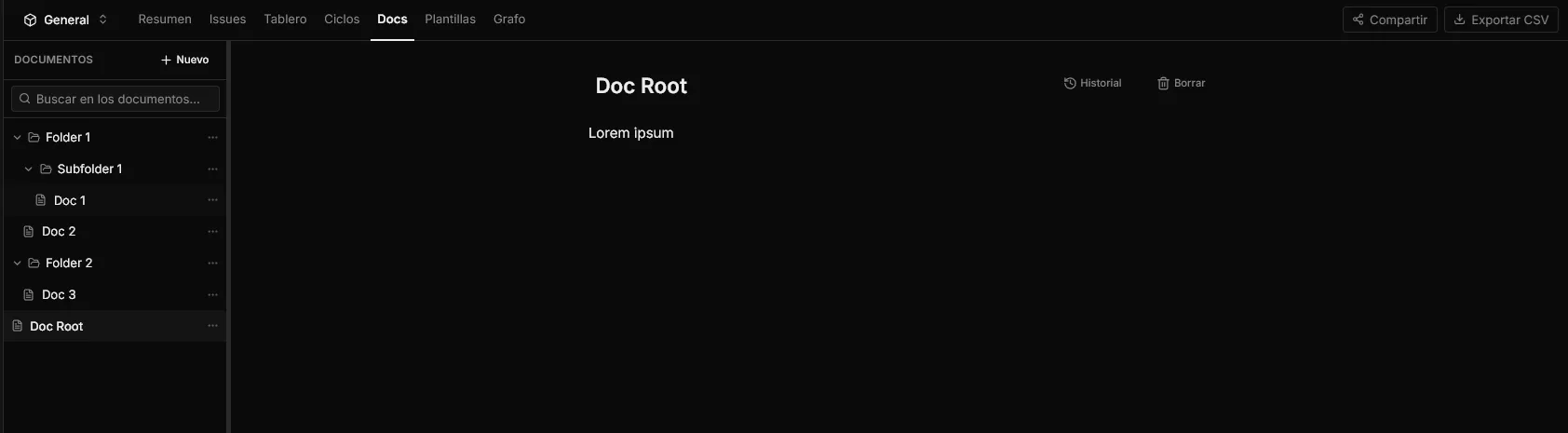
Organising it into folders
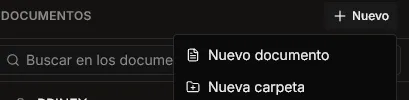
New creates either a loose document or a folder.
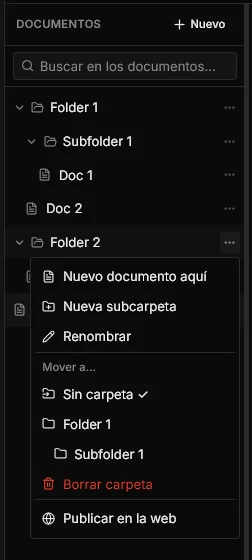
Each folder has its own menu (⋯) to create a document inside it, add a subfolder, rename it, move it elsewhere or delete it.
- Folders nest: you can have subfolders inside subfolders.
- Delete folder doesn’t delete what’s inside: its documents and subfolders move up one level.
- Whatever you collapse stays collapsed next time, per project.
- Documents that aren’t in a folder sit at the bottom, under No folder.
Searching and linking documents
The sidebar search looks inside the content, not just in titles, and returns an excerpt with your terms highlighted.
To link one document from another, type / in the editor followed by the document’s
title: the menu offers it and inserts it as a link. The linked document then shows
Linked from, listing everything that points at it. That’s how the project’s web of
knowledge gets built without maintaining an index by hand.
Reading comfortably
- Full width: the button in the document header, next to History, switches between the usual reading width and all the available width. It helps with wide tables. It is remembered in your browser and doesn’t show on mobile, where it is already full width.
- Foldable sections: when reading, every heading can be folded with its arrow, and collapsible blocks tuck away what doesn’t need to be seen. While you edit, everything shows. See foldable sections by heading.
Version history
History opens the list of saved versions of that document, with the date and who wrote it — including when the author is an agent over MCP. From a version, Restore takes the document back to that state.
Versions are grouped while the same person keeps writing, so autosave doesn’t generate a hundred entries in an afternoon, and the last 50 per document are kept.
Publishing it for your client
Publish to the web turns a document — or a whole folder — into a URL anyone can open, with no account and no invitation. It’s in the ⋯ menu, and it’s available to admins and members (a guest doesn’t hand out access that isn’t theirs).
Publishing a folder doesn’t publish a document: it publishes a navigable mini-site with its index, its search and its subfolders. That’s your client’s manual.
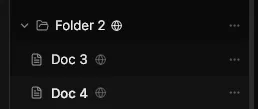
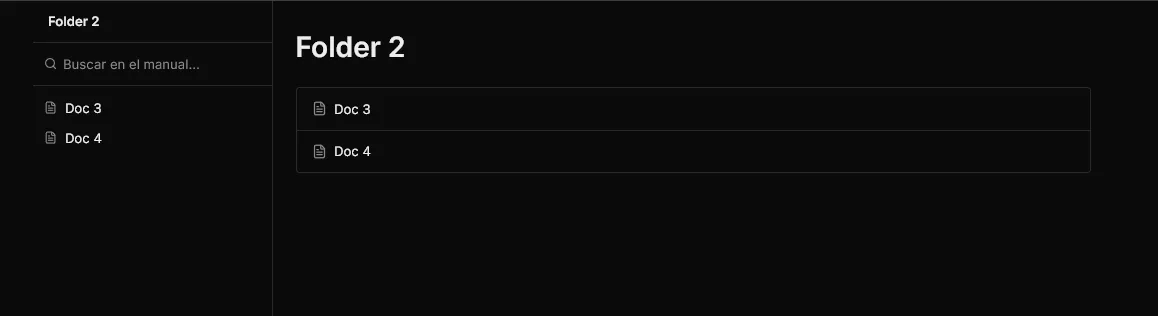
What comes with it:
- The globe (🌐) marks what’s published in the tree. A document inside a published folder shows as public because a parent folder is.
- Copy public link, to send it to whoever needs it.
- Publish with its own link gives a document its own URL, independent of the folder’s.
- Generate a new link changes the address: the previous one stops working immediately. That’s what you use when a link has got out of hand.
- Stop publishing cuts it off. Revoking a folder takes down the whole mini-site, including its documents’ URLs.
- Moving a document into a published folder warns you first: it’s about to become readable from the internet.
Six months later nobody remembers what they left open, so Settings → Published documents holds an inventory of everything the workspace has exposed right now — what it is, which project it belongs to, who published it and when — with a button to cut each one off. That screen is admins only.
What publishing doesn’t do
Worth being clear about before you promise it to a client:
- It’s read-only. An anonymous reader doesn’t comment or edit. If you want someone outside to comment, what you need is to share the project with an email guest.
- It doesn’t show up on Google. Published pages return
noindexon purpose. - Anyone with the link gets in. The address is random and unguessable, but there’s no password: treat it as what it is, a secret.
- No custom domain and no branding: no client logo or colours on what you publish.
And your agents read the same thing
Your agents reach these documents over MCP with list_docs, get_doc and save_doc
(see API and MCP). The document you just published for your client
is exactly the one your agent consults to work: written once, useful to both.
Related: Projects · Agents · API and MCP · Sharing a project.